
Kaida Rylan Updated on Mar 31, 2025
Table of Contents
TOP VPN
Maintain Your Online Privacy with Falcon VPN
Try NowSetting up a VPN might sound complicated, but rest assured, it’s far easier than you think! Wondering how to get a VPN? With user-friendly apps and straightforward guides, you can install a VPN on virtually any device in just a few simple steps. Even if your VPN doesn’t provide a native app for your device, there are often easy alternatives, such as using Smart DNS to get up and running.
Below, we’ll take you through a step-by-step guide on how to get a VPN installed and activated. We’ll also highlight tips for app setups, manual installations, and everything you need to know to enjoy a secure and private browsing experience. If you’re still undecided, we’ve also listed VPNs that are quick and simple to install on any device, saving you time and effort.
The simplest way to get a VPN is by downloading its app on your preferred device. Here’s a step-by-step guide to help you through the process:
Make sure the VPN you’re selecting is trusted, compatible with all your devices, and fits your needs. Some VPNs even support router configurations if you want to protect multiple devices simultaneously. Not sure where to start? We recommend ExpressVPN for its easy setup, fast speeds, and robust security features.
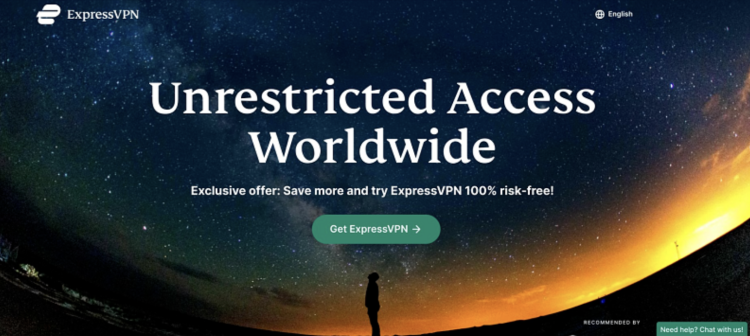
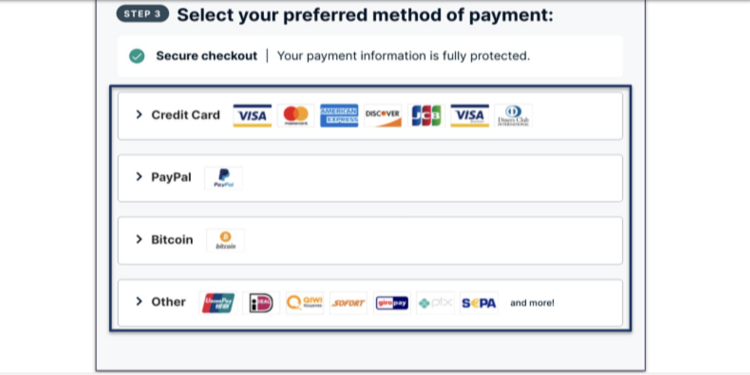
Head to the VPN provider’s website and choose a subscription plan. VPNs usually offer monthly, yearly, or multi-year options, with longer plans saving you the most money. Signing up directly from the VPN’s website often ensures you’re covered by the provider’s refund policy, unlike purchases through app stores.
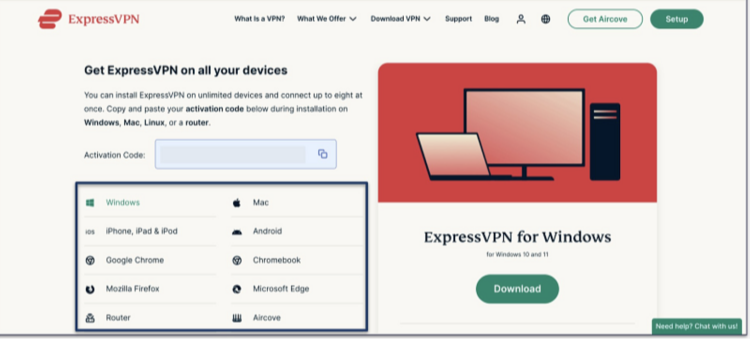
Once you’ve signed up, it’s time to install a VPN app. Simply log into your VPN account, find the app download page, select your device, and click “Download.” Run the installer to set it up. For unique systems like Linux, command-line installation might be required, but providers like ExpressVPN offer user-friendly guides for such cases.
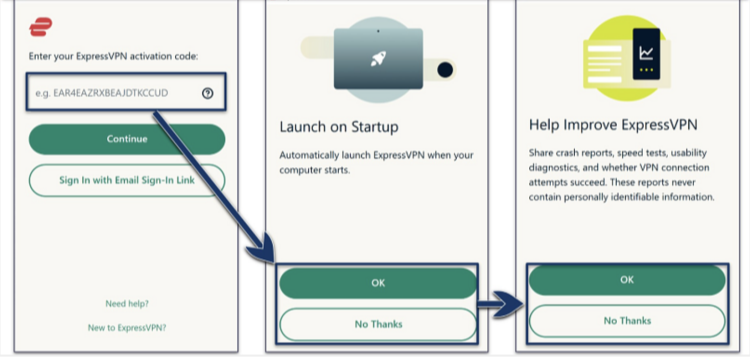
Launch the app, log in with your credentials, and explore the settings. Most VPNs come with optimized default settings, but you can customize them based on your needs. You’ll also be prompted to decide whether you want the VPN to launch on startup or share diagnostic data (you can opt out).
To start using your VPN, select a server location from the app’s list or map. Whether you want to access region-specific content or just enhance security, it’s as simple as clicking “Connect.” Once connected, you’ll see a confirmation message.
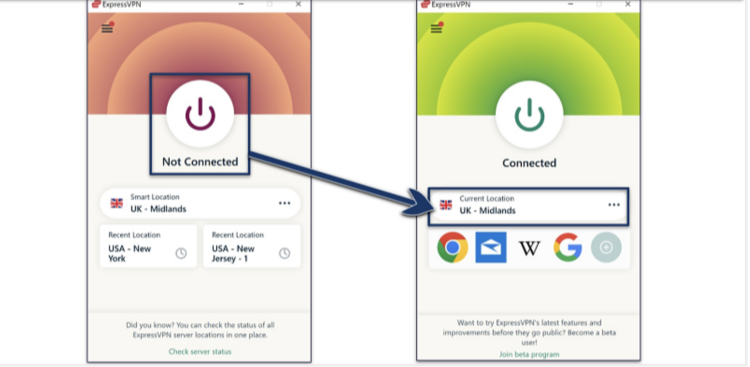
Congratulations, your VPN is now active! All your data is encrypted, and your online privacy is secured. To make this process even faster in the future, you can learn how to activate VPN browser extensions for platforms like Chrome, Edge, or Firefox.
Below are some of the best VPNs with the easiest setups for 2025, perfect for those looking for a quick and seamless VPN installation.
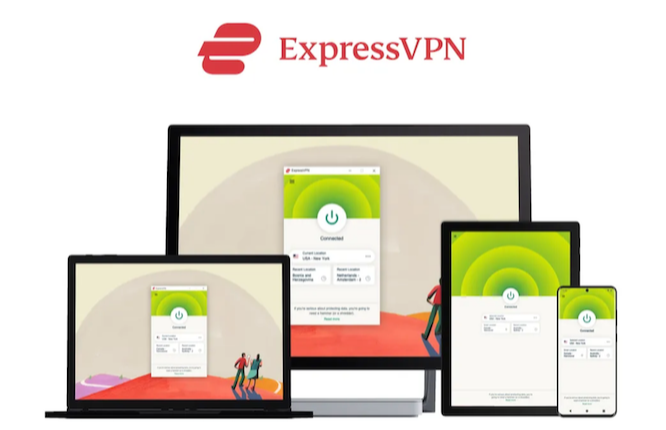
ExpressVPN is a top choice for those wondering how to get a VPN that’s incredibly easy to set up and delivers blazing-fast speeds. With apps for all major operating systems and its Smart DNS service, MediaStreamer, you can effortlessly stream HD content on Smart TVs or gaming consoles. Setup takes just minutes following the clear instructions on its website.
Additionally, ExpressVPN stands out with its custom router firmware, which simplifies the typically complex process of configuring a VPN on your router. You can control settings, switch servers, and even organize devices into groups effortlessly.
While ExpressVPN is slightly more expensive, starting at $4.99/month, discounts often bring the price down significantly (e.g., 61% off with select long-term plans). Plus, it’s backed by a 30-day money-back guarantee, making it risk-free to try.
Simple, fast setup
Smart DNS for seamless streaming
Custom router firmware for added convenience
30-day money-back guarantee
Higher price point compared to competitors
Special Offer for March 2025
Sign up now and get up to 61% off your ExpressVPN subscription.
CyberGhost offers one of the easiest setups with apps designed for all devices and purposes, including streaming and gaming. Optimized servers allow you to safely access platforms like Netflix, Disney+, FIFA+, and more, with no buffering or lag in HD quality.
Even if you’re new to VPNs, CyberGhost’s user-friendly interface makes finding the right server simple, allowing you to save favorites for quicker access. While its speeds aren’t as fast as ExpressVPN (we noted an 8% drop on nearby servers), they’re more than sufficient for smooth use.
CyberGhost has flexible pricing, with plans starting from as low as $2.19/month, backed by a generous 45-day money-back guarantee on long-term plans.
Optimized servers for streaming and gaming
Affordable long-term pricing
45-day money-back guarantee
Shorter 14-day guarantee on monthly plans
March 2025 Deal
Save 83% on CyberGhost’s popular 2-year plan!
PIA delivers a perfect balance of simplicity for beginners and customization for advanced users. The app is pre-configured for optimal speed and security, but it also allows users to tweak encryption levels and protocols (like WireGuard or OpenVPN) to fit their specific needs.
Setting up PIA is straightforward, and the app is available across all major devices. While its wide range of features might seem overwhelming, its default settings ensure you’re protected straight out of the box. Long-term plans start at $2.19/month, and it comes with a 30-day money-back guarantee.
Pre-configured for ease of use
Customizable encryption and protocol options
Affordable subscription plans
30-day money-back guarantee
Can be slightly overwhelming for total beginners due to advanced features
March 2025 Update
Get 82% off PIA for a limited time.
When evaluating VPNs, we prioritize ease of setup and compatibility across devices. We examine how straightforward the installation process is, the clarity of the user interface, and the availability of native apps for key operating systems like Windows, macOS, Android, and iOS. Additionally, we assess VPN performance during regular use, making sure it provides speed and security without interruptions.
For a detailed breakdown of our methodology, visit our in-depth guide. Our team of international experts meticulously tests each VPN, documenting every step to offer you transparent, reliable recommendations.
Devices like PlayStations, Xboxes, Fire Sticks, or Smart TVs usually don’t support native VPN apps (exceptions include newer Fire Sticks and some Smart TVs). The simplest way to set up a VPN for these devices is by using Smart DNS.
Smart DNS routes your internet traffic through your VPN’s DNS server, removing identifiable information. This allows HD streaming from anywhere and avoids the slowdowns caused by standard VPN encryption.
💡 Keep in mind:
That said, VPNs on our recommended list include Smart DNS and feature simple setup steps. Here’s how to activate it:
If your VPN doesn’t offer Smart DNS, you can also share your VPN connection from a Windows PC or laptop by setting up a VPN-powered hotspot.
Installing a VPN on your router is the most versatile method for protecting all WiFi-enabled devices in your home. It works even for devices like Smart TVs or consoles that lack VPN app support. Here’s everything you need to know:
Not every router supports VPNs. Most providers list compatible router models on their websites, so confirm yours matches.
Once set up, all devices on your network will benefit from encrypted VPN protection, no matter their specific compatibility with VPN apps.
For more guidance, check out the detailed instructions on your VPN provider’s website or contact your router’s manufacturer directly.
Setting up a VPN manually can feel daunting, but it’s often essential for devices that don’t have native VPN apps or restrictive networks. Don’t worry—we’ll walk you through the steps. Before starting, ensure you have crucial details from your VPN provider (like server addresses, protocols, and unique login credentials). If you're using TrustedVPN, their customer support is always helpful in providing this information.
Windows 10/11
Windows 7
💡 Note: The Windows built-in client only supports protocols like IKEv2 and PPTP, which might not be as safe as OpenVPN. To improve security, consider using OpenVPN software if your VPN supports manual configurations.
Optional adjustments can be made through tools like Tunnelblick, an app designed to manage OpenVPN connections for macOS users.
For those seeking extra control or protocols, download the Linux version of OpenVPN for manual configurations.
Installing a VPN APK
Sometimes, the Google Play Store isn’t accessible (e.g., on Huawei devices). Here’s how to install a VPN APK file safely:
Manual Configuration
For both Android and iOS, OpenVPN Connect offers advanced configuration options if built-in tools lack features.
Prefer more control over your privacy? Setting up your own VPN grants you full autonomy. While this method requires technical expertise, it also minimizes reliance on external companies to manage your data.
Options include:
Once your VPN is live, certain settings can enhance your experience.
Setting up a VPN may seem daunting at first, but it's actually much easier than you think! Whether you're using it for streaming, enhancing security, gaming, or other activities, a few simple adjustments can make a huge difference. In this guide, we’ll walk you through how to get a VPN up and running, as well as how to optimize its settings to meet your specific needs.
Here’s how you can set up your VPN for some of the most common activities:
1. Security and Privacy
To protect your data and ensure your online activities are private, configure your VPN with these settings:
2. Streaming
Planning to access global content? These adjustments can optimize your performance:
3. Torrenting
If you frequently download files, ensure maximum security with these suggestions:
4. Gaming
Gaming requires speed, so optimize your connection like this:
VPNs are incredibly versatile tools designed to enhance security, privacy, and global access. But when are they most useful?
A VPN enhances your online security by encrypting your connection, hiding your activities from third parties, and enabling you to access global content securely.
Not necessarily. If you’re mainly using a VPN for streaming, install it on the devices you use for watching. However, if privacy is your priority, you should install it on all your devices or use a router-based VPN for full network protection.
Most VPNs allow 5–10 simultaneous connections. If you need more, set up the VPN on your router to secure all devices on your network in one go!
Yes, VPNs are legal in most countries, providing a legitimate way to protect your online data. However, be aware that some countries, like China and Russia, have restrictions on their use.
While free VPNs exist, they often include limitations like slower speeds, lower security, and ads. For better performance and privacy, investing in a reputable, premium VPN is highly recommended.
Setting up a VPN tailored to your needs is a game-changer for both security and convenience. Whether you’re gaming, streaming, or just protecting your private data, the right settings can optimize your experience in just a few clicks.
Now that you know how to get a VPN up and running, why not explore premium services offering top-notch speed and protection? It’s time to take control of your online presence.
Kaida Rylan is a Junior Writer specializing in VPN reviews and online security. Passionate about technology and digital privacy, Kaida has been researching and testing VPNs to provide readers with honest, in-depth insights. Kaida holds a Master’s Degree in Communications and a Bachelor’s in Media Studies. Additionally, they completed a cybersecurity certification program and gained experience working at a tech startup. Before joining the VPN industry, Kaida worked as a content creator, tech writer, and digital marketing specialist. In their free time, they enjoy exploring new cybersecurity tools and staying up to date with the latest tech trends.