
Kaida Rylan Updated on Apr 21, 2025
Table of Contents
TOP VPN
Maintain Your Online Privacy with Falcon VPN
Try NowIf you’re asking, “What TVs can I install Kodi on?" or “Can you put Kodi on Roku TV?”, you’re in the right place. How to install Kodi on a Smart TV is a common question, especially since Kodi works on many devices but doesn’t have a dedicated app specifically for Smart TVs. Don’t worry though — installing Kodi on Smart TVs is possible, and we’ll explain how to do it step-by-step. From Android TV to Samsung and LG platforms, this guide makes the process simple to follow.
Kodi is a versatile media player with countless add-ons for accessing global content. However, some unofficial add-ons could expose your data to hackers or malicious files. To stay safe, use a trusted VPN like ExpressVPN to protect your connection and browse securely while streaming via Kodi.
If your Smart TV has Android OS, here’s how to get Kodi directly from the Google Play Store in just a few steps:
Open Google Play Store: Access the app store from your Smart TV’s home menu.
Search “Kodi”: Look for the official Kodi app by Kodi Foundation (it’s usually the top result).
Click “Install”: Download and install the app on your TV.
That’s it! Kodi is now ready to use on your Android TV.
If your Smart TV doesn’t support app stores, sideloading becomes the best alternative. This method works on platforms like Samsung, LG, and even Roku TVs when direct installation isn’t possible.
Access Kodi’s Website: Open your TV’s internet browser and go to Kodi’s official download page.
Download the App Version: Choose the file that matches your device type.
Enable Permissions: Adjust your TV’s security settings to allow downloads from unknown sources.
Locate Download Folder: Open the downloads folder to find the Kodi file.
Complete Installation: Click on the file to begin installation. For Android TVs, select “Package Installer” when prompted.
Kodi can also work indirectly on devices without app stores like Roku TVs or LG TVs. While Kodi and Samsung TV integration requires sideloading, users often find an HDMI-connected device (like a FireStick) helpful for bridging compatibility.
If installing directly onto your TV isn’t an option, Chromecast is here to save the day!
Setup Chromecast on Your TV
Plug your Chromecast into the HDMI port. Set it up by visiting chromecast.com/setup.
Download Kodi on Your Device
Grab Kodi from the Google Play Store for mobile devices or download it directly from the Kodi website on your PC or laptop.
Install Kodi
On mobile, tap "Install" on the Play Store.
On your computer, locate the downloaded Kodi file in the Downloads folder and run the installer.
Cast Your Screen
From your device's settings, select "Cast" and ensure you're signed in to the same Google account on both your TV and device.
Protect Yourself with a VPN
For safe streaming, connect to a VPN server.
Enjoy Streaming Kodi on TV
Open the Kodi app, and start casting content right to your TV screen!
Setting up Kodi on your Fire TV Stick is simple:
Open Developer Options
Navigate to Settings > My Fire TV > Developer Options on the Fire TV Stick.
Enable Permissions
Turn on ADB debugging and allow apps from unknown sources.
Install the Downloader App
Search for "Downloader" in the Fire TV search bar and install this orange app.
Download Kodi
Launch the Downloader app and type in http://kodi.tv/download. Select the Android option and the 32-bit version (ARMV7A) to start the download.
Install Kodi
Open the downloaded file to install Kodi. Once installed, feel free to customize the settings.
Start Streaming
Launch Kodi and connect to a VPN if needed, then enjoy streaming your favorite content.
An Android TV Box is an excellent way to run Kodi on Smart TVs. Here’s what to do:
Find Kodi on Google Play Store
Connect your Android TV Box to your Smart TV, open the Play Store, and search "Kodi."
Install and Launch Kodi
Download and install the app, then launch it.
Use a VPN
Protect your streaming data with a reliable VPN app for Android TV Boxes.
Sit Back and Stream
Start streaming content through Kodi’s clean and customizable interface.
Using a VPN with Kodi isn’t just a good idea; it’s a game-changer. A VPN protects your online activity by encrypting your connection, ensuring your Kodi streaming stays completely private.
| Benefit | Description |
|---|---|
| Privacy | Prevents hackers from intercepting your data. |
| Unblock Content | Access content libraries and Kodi add-ons unavailable in your region. |
| Security on Public Wi-Fi | Keeps your data safe even on unsecured networks. |
| Avoid ISP Throttling | Bypass speed limitations imposed by your internet provider. |
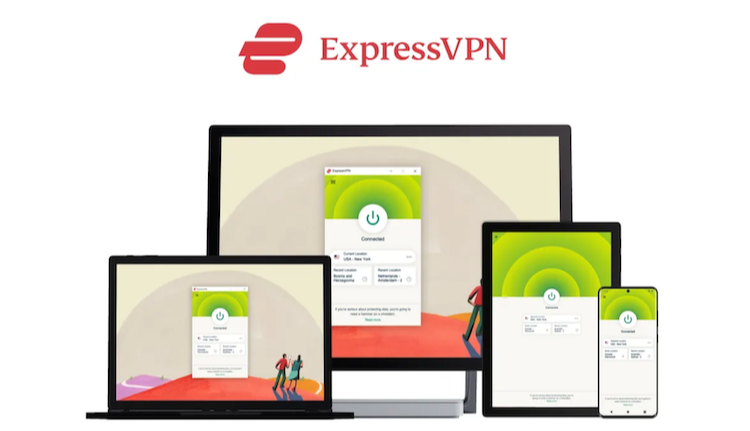
Thousands of servers in over 105 countries.
AES 256-bit encryption, zero logs, RAM-only servers.
Connect up to 8 devices simultaneously.
Includes MediaStreamer for Smart TVs.
Supports Kodi on Roku TV and Samsung TV via router setup.
Price: $4.99/month (2-year plan)
9,700+ servers in 100+ countries.
7-device connections.
Works with Samsung, Roku, and LG TVs.
45-day money-back guarantee.
Price: Starting at $2.03/month
35,000+ servers across 91 countries.
Unlimited device connections.
MACE feature blocks harmful Kodi add-ons.
Fast speeds (200–300Mbps)
Price: $2.03/month (2-year plan)
Whether you're exploring what TVs can I install Kodi, using Kodi and Samsung TV, or streaming via Kodi on Roku TV and Kodi LG TV, here's what to look for in a VPN:
Strong Security and Privacy
Global Server Coverage
High-Speed Servers
Smart TV Compatibility
Yes, using Kodi on your smart TV is completely legal. However, you should avoid third-party add-ons that bypass copyright protections, as this is against the law. It’s important to use Kodi responsibly and within legal boundaries.
Yes, but the process is not straightforward. Samsung Smart TVs operate on their own OS, not Android, which means you can't download the Kodi app directly.
To use Kodi on Samsung TVs, consider these options:
Use a Google Chromecast, Amazon Fire TV Stick, or an Android TV Box. These devices don’t install Kodi directly on your Samsung TV but allow you to stream Kodi content to it.
Leverage VPN services with MediaStreamer features, like ExpressVPN, to enable streaming even with devices not natively compatible with VPN apps.
Keywords preserved: kodi and samsung tv
Kodi isn’t directly installable on Roku TVs. However, you can still enjoy Kodi on Roku through screen mirroring.
Simply enable screen mirroring on Roku and use another device to mirror Kodi's content. This way, you can stream platforms like Kodi and access services like American Netflix on Roku.
Keywords preserved: can you put kodi on roku tv, kodi on roku tv
Yes, Kodi works with Apple devices, but the installation process can be a bit complex.
For detailed instructions tailored to your device, visit Kodi’s official website. Keep in mind that premium VPNs, which are highly reliable for Kodi use, also work seamlessly with Apple operating systems.
Not if done carefully. Sideloading Kodi is safe as long as you follow the recommended methods.
Most issues occur when users try to tamper with their TV’s operating system. If Kodi doesn’t work after installation, you can simply uninstall it and try again — or opt for another installation method or device.
Smart TVs that support direct Kodi app installations are incredibly convenient since they allow easier access to other apps and platforms.
However, devices like the Amazon Fire TV Stick, Google Chromecast, and Android TV Box are excellent alternatives if your smart TV doesn’t support Kodi natively.
Keywords preserved: what tvs can i install kodi
While Kodi works without a VPN, it’s safer to use one.
Premium VPNs enhance security by preventing external parties from accessing your data or tracking your online activity. Certain add-ons on Kodi may unintentionally expose you to security risks or even legal issues by providing access to pirated content.
For these reasons, using a VPN like ExpressVPN is highly recommended.
Although Kodi might not be compatible with every smart TV, there are multiple methods available if you're wondering how to install Kodi on a Smart TV — be it a Samsung, LG, or Roku TV.
Once installed, improve your security by using a reliable VPN like ExpressVPN for safe and anonymous streaming.
ExpressVPN offers:
| Feature | Benefit |
|---|---|
| Blazing-fast speeds | Smooth streaming with no buffering |
| Robust encryption | Keeps your data private and secure |
| Reliable unblocking | Access geo-restricted content easily |
| 30-day refund policy | Try risk-free and cancel anytime |
Kaida Rylan is a Junior Writer specializing in VPN reviews and online security. Passionate about technology and digital privacy, Kaida has been researching and testing VPNs to provide readers with honest, in-depth insights. Kaida holds a Master’s Degree in Communications and a Bachelor’s in Media Studies. Additionally, they completed a cybersecurity certification program and gained experience working at a tech startup. Before joining the VPN industry, Kaida worked as a content creator, tech writer, and digital marketing specialist. In their free time, they enjoy exploring new cybersecurity tools and staying up to date with the latest tech trends.